CLI Example
Fairical provides Command-line Apps to help generating and visualizing solutions to evaluate the unified performance of Machine Learning (ML) systems under multiple utility and fairness constraints. There are three stages to produce an assessment as shown next.
Note
Obtaining sample data
The examples below require you download sample data for two ML systems. You can download them from these links:
On the examples below, we assume you downloaded/copied these files into a directory
named sample.
Generate solutions or operating modes (solve command): This step converts prediction scores of ML systems into metric operating modes (a.k.a. “solutions”). Here is an example of the solution generation for two systems with the
accuracyandequalized odds differencefor thegenderattribute, available inside the JSON files:fairical solve -vv --thresholds=10 sample/system_{1,2}.json
This step will generate two files on the current directory, with the same name as the input files, containing the operating modes of both system 1 and system 2. You may inspect different options and their defaults by looking at the solve command documentation.
Note
Compute solutions *a priori*
The thresholds and system selections from solutions saved in the command above can be used during
solveto compute a priori solutions. Assuming system 2 corresponds to a “validation” set from which thresholds and systems should be picked from, you can compute solutions for system 1 (test set) like this:# apply all operating modes @system_2.json to scores of system_1.json fairical solve -vv sample/system_1.json@system_2.json # apply only non-dominated solutions fairical solve -vv sample/system_1.json@system_2.json --nds # apply only dominated solutions fairical solve -vv sample/system_1.json@system_2.json --ds
You may pass additional score files or groupings of
scores@solutionsto the command. Each will be evaluated and saved separately.The resulting file can be used in the
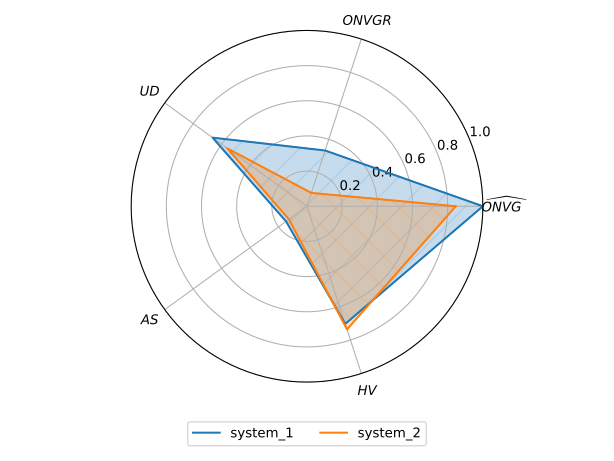
evaluateandparetocommands for comparison purposes, as described next.Evaluate indicators (evaluate command): This step estimates the Pareto front formed by the operating modes (solutions) found on the previous step, and outputs 5 indicators that characterize that front.
Here is an example for two systems whose solutions were calculated on the previous step:
fairical evaluate -vv system_{1,2}.json --radar radar.pdf
This command generates a table like the one below:
System
RELATIVE-ONVG
ONVGR
UD
AS
HV
Area
system_1
1.00
0.33
0.66
0.15
0.70
0.29
system_2
0.85
0.08
0.56
0.13
0.74
0.18
And, the radar chart, which displays a graphical representation of various indicators.
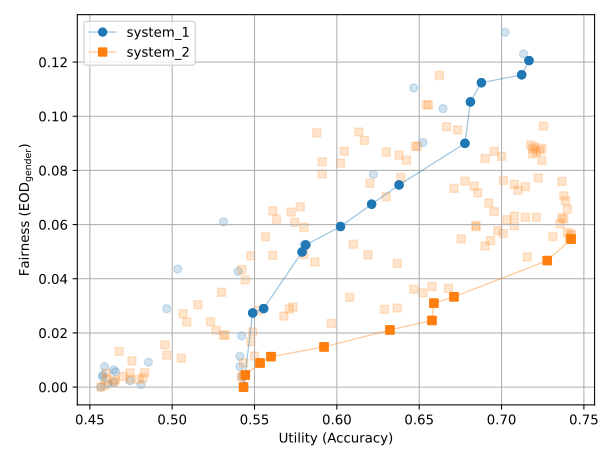
Visualize the Pareto front (estimate) (pareto command): You may optionally display the organization of non-dominated operating modes (solutions) on a plot, forming an estimated Pareto front. Naturally, this step is only possible when computing solutions for 2 or 3 metrics at a time.
Here is an example of this optional step:
fairical pareto -vv system_{1,2}.json --plot
This command should generate a plot like the following: